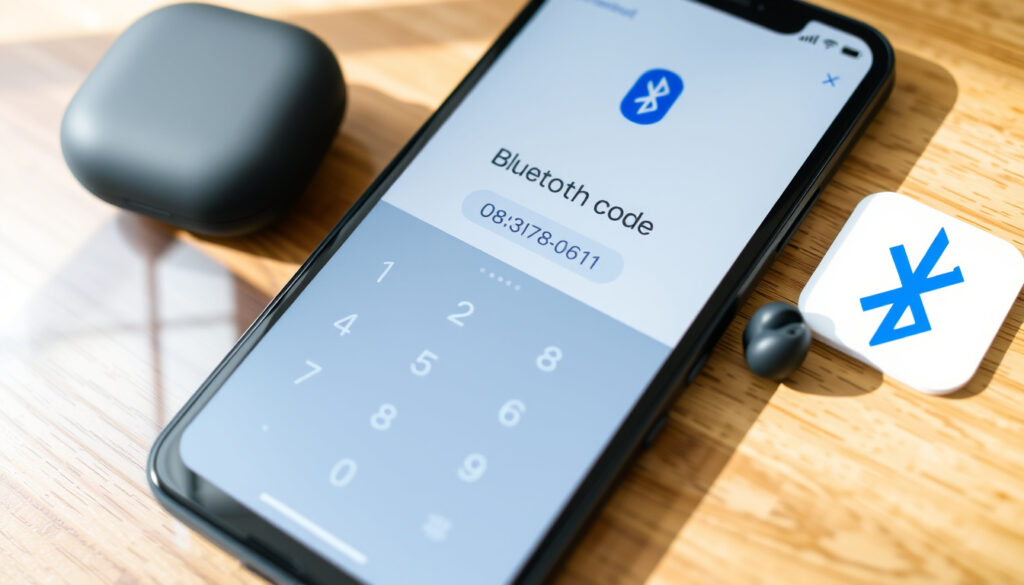
What Is a Bluetooth Pairing Code? Where to Find It
Few things are more frustrating than a new gadget that refuses to pair. You’ve turned on Bluetooth, tapped the device name, and then—a blank passcode field appears.
Devices shipped with Bluetooth annually: over 5 billion (2023, Bluetooth SIG) | Common pairing code format: 0000 or 1234 (often 4 digits) | Platforms requiring pairing codes: iOS, Android, Windows, macOS | Percentage of pairing issues related to code entry: 15-20% (user support forums)
Quick snapshot
- Short numeric or alphanumeric code used for secure connection between devices (Google Android Help (official support documentation))
- Often 4 digits, sometimes 6 or 8 (Sony Support (official manufacturer guidance))
- On the device itself (sticker or screen) (Techwalla (consumer tech resource))
- In the user manual or quick-start guide (YouTube guide (consumer video))
- On the device packaging (BlinksAndButtons (consumer electronics blog))
- 0000 – most common default (Google Android Help (official support documentation))
- 1234 – second most common (Sony Support (official manufacturer guidance))
- 1111 – used by some brands (Techwalla (consumer tech resource))
- Try 0000 or 1234 as a fallback (Google Android Help (official support documentation))
- Check the manufacturer’s website (Techwalla (consumer tech resource))
- Look in the device settings menu (Audio Champs (audio equipment guide))
The table below presents key facts about Bluetooth pairing codes.
| Fact | Value |
|---|---|
| Bluetooth version | 5.4 (latest as of 2024) – Bluetooth SIG (industry standards body) |
| Maximum pairing code length | 16 digits (alphanumeric) – Google Android Help (official support documentation) |
| Default code for most devices | 0000 – Sony Support (official manufacturer guidance) |
| Year Bluetooth standard introduced | 1994 – Bluetooth SIG (industry standards body) |
- Check the device itself for a sticker or screen display.
- Look in the user manual or quick-start guide.
- Inspect the device packaging.
- Try common default codes: 0000, 1234, or 1111.
- If still stuck, check the manufacturer’s website.
Where do I find my Bluetooth pairing code?
Your first stop is the device itself. Many manufacturers print the passcode on a sticker attached to the back, bottom, or under the battery cover. Techwalla (consumer tech resource) notes that headsets and speakers often hide the code under a removable panel. If the sticker is missing or worn, the user manual is the next logical place — GadgetsRanked (tech product guide) reports that many manufacturers list the default passkey in the printed documentation.
Locating the code on the device itself
- Check the underside of wireless speakers and headphones (Audio Champs (audio equipment guide))
- Look behind the battery cover on portable devices (Techwalla (consumer tech resource))
- Inspect the base of car hands-free kits and adapters (Sony Support (official manufacturer guidance))
Finding the code in the user manual
Still no luck? Flip to the Bluetooth pairing section of the manual. GadgetsRanked (tech product guide) states that the default code is usually listed in a table near the pairing instructions. If you’ve lost the paper manual, most manufacturers host PDFs on their support sites — Sony Support (official manufacturer guidance) is a good example, with clear passcode details.
Checking the device packaging
Before you toss the box, check the insert card or the box itself. BlinksAndButtons (consumer electronics blog) notes that the pairing code is sometimes printed on a small card tucked inside the packaging. If you’ve recycled the box, try the manufacturer’s website next.
The code is often printed in plain sight, but most users never look beyond the pairing screen. A quick physical inspection saves 15 minutes of frustration.
TL;DR: Start with a physical check of the device, manual, or packaging. Default codes 0000 or 1234 are the most reliable fallback.
What does a Bluetooth code look like?
Bluetooth pairing codes come in a few predictable formats. Knowing what to expect helps you spot the code quickly when you see it.
Numeric codes (3 to 4 digits)
- 4-digit codes are the most widespread – e.g., 0000, 1234, 1111 (Google Android Help (official support documentation))
- Some older devices use 3-digit codes like 123 or 000 (Techwalla (consumer tech resource))
Alphanumeric codes
Less common, but some security-oriented devices use a mix of letters and numbers. Sony Support (official manufacturer guidance) notes that their professional audio gear sometimes requires an alphanumeric passkey printed on the unit. These codes are longer – typically 6 to 16 characters.
Common default codes such as 0000 or 1234
If you’re stuck, the defaults are your best friend. Google Android Help (official support documentation) explicitly recommends trying 0000 or 1234 when no code is provided. Sony Support (official manufacturer guidance) confirms that 0000 is the factory default for most of their consumer devices.
Default codes are rarely changed by manufacturers, meaning a determined attacker can guess them. For sensitive connections, consider changing the code if the device allows it.
TL;DR: Most codes are numeric and 4 digits long. 0000 is the most common default, followed by 1234.
How to find Bluetooth pairing code on iPhone and Android?
Modern smartphones handle the pairing code differently. Here’s how each platform works.
Bluetooth pairing code on iOS
On an iPhone, the pairing code often appears automatically on the screen when you connect a new device. Google Android Help (official support documentation) explains that iOS generates a random numeric code that you must confirm on both devices. If the accessory has a fixed code (like a car kit), the phone will prompt you to enter it.
Bluetooth pairing code on Android
Android’s flow is similar but with a key difference: the phone may display a code automatically, or it may ask you to type one. Google Android Help (official support documentation) advises users to follow the on-screen instructions. If no code appears, try the default 0000 or 1234.
Where to enter the code on each platform
- iOS: A pop-up window appears – just type the code and tap “Pair” (Google Android Help (official support documentation))
- Android: The code entry field is inside the pairing request notification or in the Bluetooth settings (Google Android Help (official support documentation))
The pattern: both platforms use a simple pop-up. The trick is knowing whether the code is displayed on the accessory or generated by the phone.
TL;DR: On iOS and Android, the code entry is a pop-up. If no code is shown, try 0000 or 1234.
What is the pair code for Bluetooth?
Let’s step back and define the term clearly.
Definition of a Bluetooth pairing code
A Bluetooth pairing code is a short numeric or alphanumeric string used to authenticate a connection between two devices. Google Android Help (official support documentation) describes it as a security measure that confirms both devices intend to connect. Without it, an unauthorized device could pair with yours.
Purpose of the code in securing connections
The code ensures that the pairing is intentional. When you enter the same code on both devices, they establish a trusted link. Sony Support (official manufacturer guidance) explains that the passcode prevents a nearby device from accidentally or maliciously hijacking the connection.
Difference between PIN, passkey, and pairing code
In Bluetooth documentation, the terms are used interchangeably. Techwalla (consumer tech resource) notes that “PIN,” “passkey,” and “pairing code” all refer to the same thing. The Bluetooth specification calls it a “passkey” when it’s six digits and a “PIN” when it’s four, but consumer materials rarely make that distinction.
Don’t get hung up on terminology. If your device asks for a “passkey,” treat it like a pairing code. The same defaults apply.
TL;DR: The pairing code is a security measure. The terms PIN, passkey, and pairing code are essentially the same.
Where to enter Bluetooth pairing code?
Once you have the code, the next step is entering it in the right place. This varies by device type.
Entering the code on a phone or tablet
On a phone or tablet, the code entry is almost always a pop-up. Google Android Help (official support documentation) describes the process: after selecting a device in Bluetooth settings, a dialog appears asking for the code. Type it and tap “Pair” or “OK.”
Entering the code on a car or hands-free kit
Car kits often have a fixed code like 0000. Sony Support (official manufacturer guidance) states that many in-car Bluetooth systems use the default code 0000. The code is entered either via the car’s touchscreen or by using the voice control system. Some cars require you to enter the code on the phone first, then confirm on the car display.
Entering the code on a speaker or headset
For speakers and headsets, the code is usually entered on the phone or computer, not on the accessory itself. Audio Champs (audio equipment guide) explains that the accessory enters pairing mode automatically, and the phone’s prompt asks for the code. If the code is printed on the speaker, you type it into the phone.
The pattern: the code entry always happens on the device that initiates the pairing (your phone, tablet, or computer). The accessory just waits for confirmation.
TL;DR: The code is entered on the initiating device, not the accessory. Car kits often use 0000 as default.
What’s confirmed and what’s unclear
Confirmed facts
- Pairing codes for most consumer devices are 0000 or 1234 (Google Android Help (official support documentation))
- Codes are found on device labels, manuals, or packaging (Techwalla (consumer tech resource))
- iOS and Android handle code entry with a pop-up prompt (Google Android Help (official support documentation))
- Sony’s default passcode is 0000 (Sony Support (official manufacturer guidance))
What’s unclear
- Exact percentage of devices using a code vs. automatic pairing (Kiwi Press (tech guide))
- Frequency of code changes by manufacturers (Reddit (user community forum))
- Proportion of devices that print the code on the device
- Whether the code is always a 4-digit number
Quotes from the experts
If your device requests a passcode, enter 0000. This is the default for most Sony Bluetooth products.
Sony Support – official manufacturer guidance
When a passcode is needed and you don’t have it, try 0000 or 1234. These are the most common defaults.
Google Android Help – official support documentation
Summary
Bluetooth pairing codes are a simple but essential security layer. For most users, the code is a 4-digit number printed somewhere on the device or in the manual. The defaults are almost always 0000 or 1234. For iPhone and Android users, the code entry is a straightforward pop-up. The trade-off is clear: convenience comes at the cost of weak security, since default codes are rarely changed. For anyone pairing a new device, the smartest move is to first inspect the physical device, then try the defaults, and finally check the manufacturer’s support site. If you’re still stuck, the device may support automatic pairing without any code at all.
Frequently asked questions
Can I change my Bluetooth pairing code?
Some devices allow you to change the pairing code via their settings menu or a dedicated app. Check the user manual for your specific model. Most consumer devices, however, use a fixed default that cannot be changed.
Why is my Bluetooth pairing code not working?
Common reasons: the device is not in pairing mode, the code was entered incorrectly, or the battery is low. Restart both devices and try again. If the code still fails, try a default like 0000 or 1234.
Do all Bluetooth devices require a pairing code?
No. Many modern devices use automatic pairing (e.g., Apple AirPods, some Android phones) that skip the code entirely. The Bluetooth standard supports both modes.
Is the Bluetooth pairing code the same as the PIN?
Yes. In most consumer contexts, “PIN,” “passkey,” “pairing code,” and “passcode” all refer to the same thing. The Bluetooth spec uses “passkey” for 6-digit codes and “PIN” for 4-digit, but practical usage blurs the line.
How to reset a Bluetooth pairing code?
Resetting the pairing code usually requires resetting the device to factory defaults. Check the manufacturer’s instructions – often a combination of button presses or a reset pin hole.
What if I can’t find the pairing code anywhere?
Try the defaults 0000, 1234, or 1111. If none work, search the manufacturer’s website for the support page. Many brands list default codes in their FAQ section.
Is Bluetooth pairing code secure?
It provides basic security against accidental connections, but it is not strong against determined attackers. Default codes are widely known, so for sensitive data, consider using a Bluetooth device that supports encryption and secure pairing (e.g., Bluetooth 5.4).
For more on Bluetooth connectivity, check our guide on GPS Tracker for Cars: Best Guide & Free Apps 2025 and the Eufy X10 Pro Omni Review.
More related posts
 Albany Senior High School: Enrollment, Start Time, History & More
 Andrew Saville’s First Wife: Pamela Leong & Family
 Black Number Plates NZ Price: Cost & Legal Guide 2025
 Scoops Upper Hutt Menu: Prices, Location & Fish Chips Guide
 Tom Phillips NZ: Why Did He Leave? 3-Year Search & Inquiry
 Peppa Pig New Baby: Meet Baby Evie, Episode Guide & Facts
 New Caledonia vs New Zealand – Size, Politics, Travel Facts